




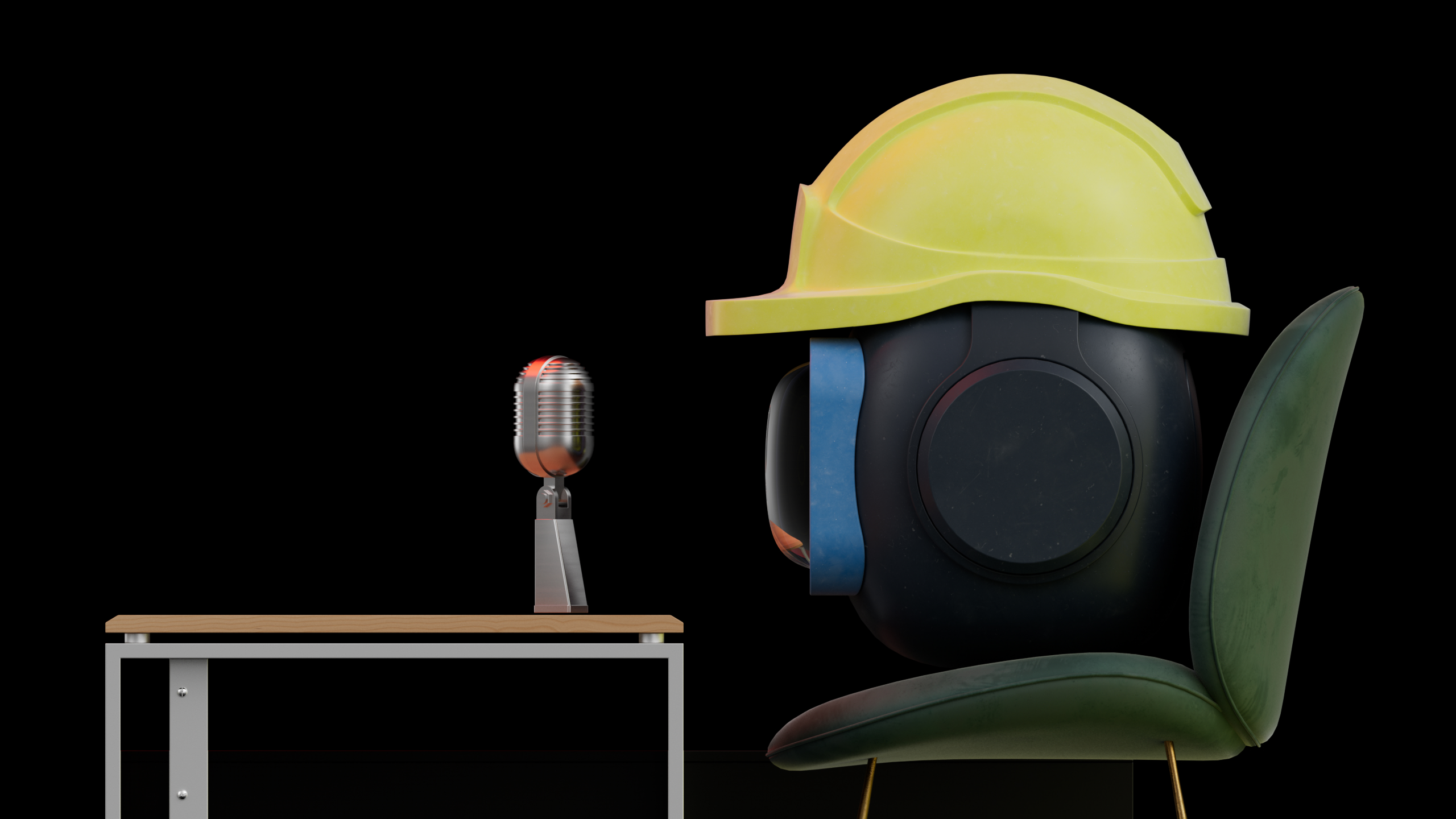
Spot is a live voice agent in Kreo. Point at the drawing, ask anything, and get the answer out loud. Spot works alongside Caddie. Quick things it does itself in seconds: areas, lengths, counts, comments. Bigger jobs it hands to Caddie and keeps you posted.
Spot: a live voice agent right on your drawing
Spot is now available in Kreo. It's a voice agent you can talk to while you work on a drawing. Ask anything about the job:
- "What's the area here?"
- "What's this symbol?"
- "How many windows like this are on the sheet?"
- "What's Caddie working on right now?"
Point at what you mean, and Spot answers out loud.
Spot sees what you point at. A room, a wall, a door, a selected area, a measurement you've already made. So instead of "the area of room 2.14 on sheet three", just say "What's the area here?".
Spot and Caddie work as a team. Spot handles the quick things itself, in seconds: measure, count, leave a comment. Anything that takes more steps, it hands to Caddie: open the right page, set the scale, group measurements, export a report, run one of your own skills. Caddie does the work, Spot keeps you updated and answers questions along the way.
Spot answers in the language you speak and doesn't switch on its own, even if the microphone mishears something. It also doesn't talk for the sake of it: it won't comment on every mouse move and only speaks when you talk to it.
Measurements: point, ask, get the number
Point at a room, a window, a door opening or any area and ask for the area or perimeter. Spot creates the measurement on the drawing and tells you the result in your project units straight away.
- Area: "What's the area of this room?", "Measure the area of this window."
- Perimeter: "What's the perimeter here?"
- Length of a line or wall: "How long is this wall?", "Trace this boundary." Spot follows the line from the point you indicate and creates a polyline with its length.
Then keep going with short phrases. "And this one?", "This one too", "Now this room": Spot understands you want the same measurement for the new spot. And if you ask "What did it come to?", it gives you the result of the last measurement instead of starting a new one.
If the page has no scale yet, Spot won't make up numbers: it will offer to have Caddie set the Scale, and then you can measure again.
Comments, counts and "what's this?"
Comments by voice. Point at a spot and say: "Leave a comment: check the floor level with the architect." Spot places a callout at that point. Want it off to the side? Say where: "on the right", "bottom left", "top left corner". If you've drawn a rectangle on the sheet, the comment attaches to that whole zone.
Auto Count by example. Select an object or just point at it and say: "Count all like this." Spot takes the example, runs Auto Count and finds similar doors, windows, sanitaryware or furniture on the sheet.
Find similar for existing measurements. Point at an area you've already measured and ask: "Find similar." Spot runs Find similar and finds areas of the same type on the drawing.
"What's this?" Select an unfamiliar detail, symbol or junction and ask what it is. Spot looks at the selection and explains it itself, no separate task needed.
Caddie by voice: set the task and keep working
Any task you'd type into Ask Caddie, you can now just say. "Open sheet three", "Rename the group", "Run Auto Measure for rooms on the ground floor plan", "Export the report". Spot passes the task to Caddie, and you keep looking at the drawing.
- Answering Caddie's questions. When Caddie needs clarification, Spot reads out the questions and options. Answer by voice, Spot sends your answers, and Caddie carries on.
- Your own skills, by voice. Spot launches any Caddie skill, including the ones you and your team built yourselves. "What skills do we have?" Spot lists them. Then just say the name, "Run Door Schedule Check" or "Run Sheet Register", and Spot starts it. Your own workflows, one sentence away.
- Status. "How's Caddie doing?" Spot checks and tells you which stage the job is at. No made-up progress: if Caddie is waiting for your answers, Spot says so.
- Stop. "Stop Caddie" stops the current task.
When Caddie finishes, Spot gives you a short summary of the result and asks if you need anything else.
How to get started
- Open any drawing in Kreo.
- Click the Spot button.
- Allow microphone access and start talking.
That's it. No setup and no commands to memorise: talk the way you would to a colleague at the next desk.
Already using Kreo? Open your current project and ask Spot about the first room.
New to Kreo? Start a free trial and try Spot on your own drawing.
One more thing
Spot is only the first step in how you'll work with drawings in Kreo. We're finishing something new that takes it further, and it's very close. Stay tuned.
.png)

.png)


