




.avif)
Professional drawings are the foundation of communication between engineers, contractors, and clients. When every sheet contains up-to-date data on scale and project details, it eliminates the risk of errors and unnecessary questions.
That is why we have updated PDF export in Kreo. Now, your documentation looks flawless and meets industry standards with zero additional effort.
Dynamic Headers and Footers: Forget Manual Labeling
One of the most tedious tasks in preparing documentation is signing every sheet: project name, scale, file name. A single mistake means redoing everything. Now, Kreo does this automatically.
On every page of your exported PDF, you can automatically display key metadata: page name, scale, file name, and project name. The information is pulled directly from the system - no manual entry required.
How to set it up:
1. Open your Kreo project and click Export in the bottom right corner of the screen.
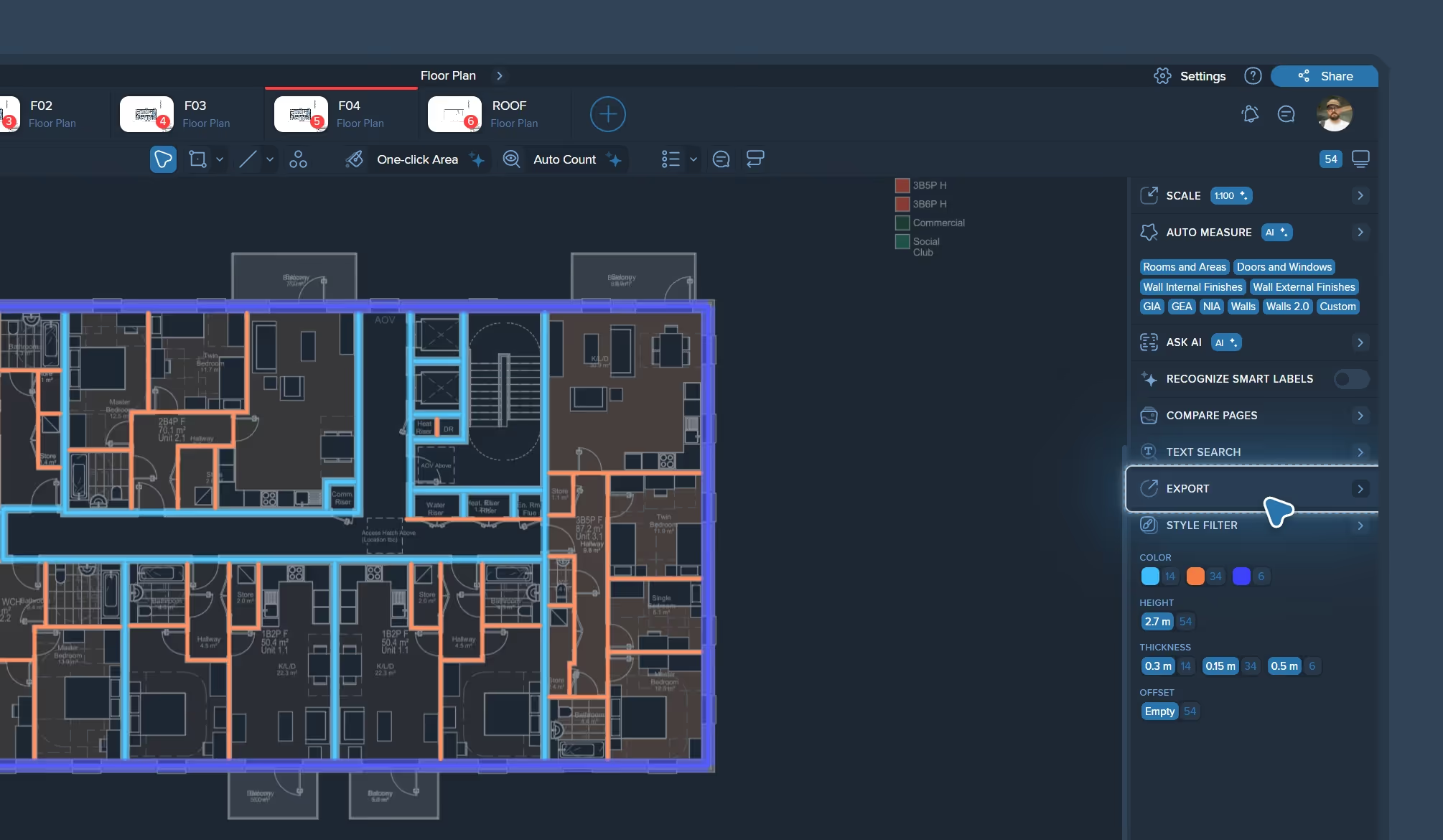
2. In the panel on the right, toggle the Add Header & Footer switch.
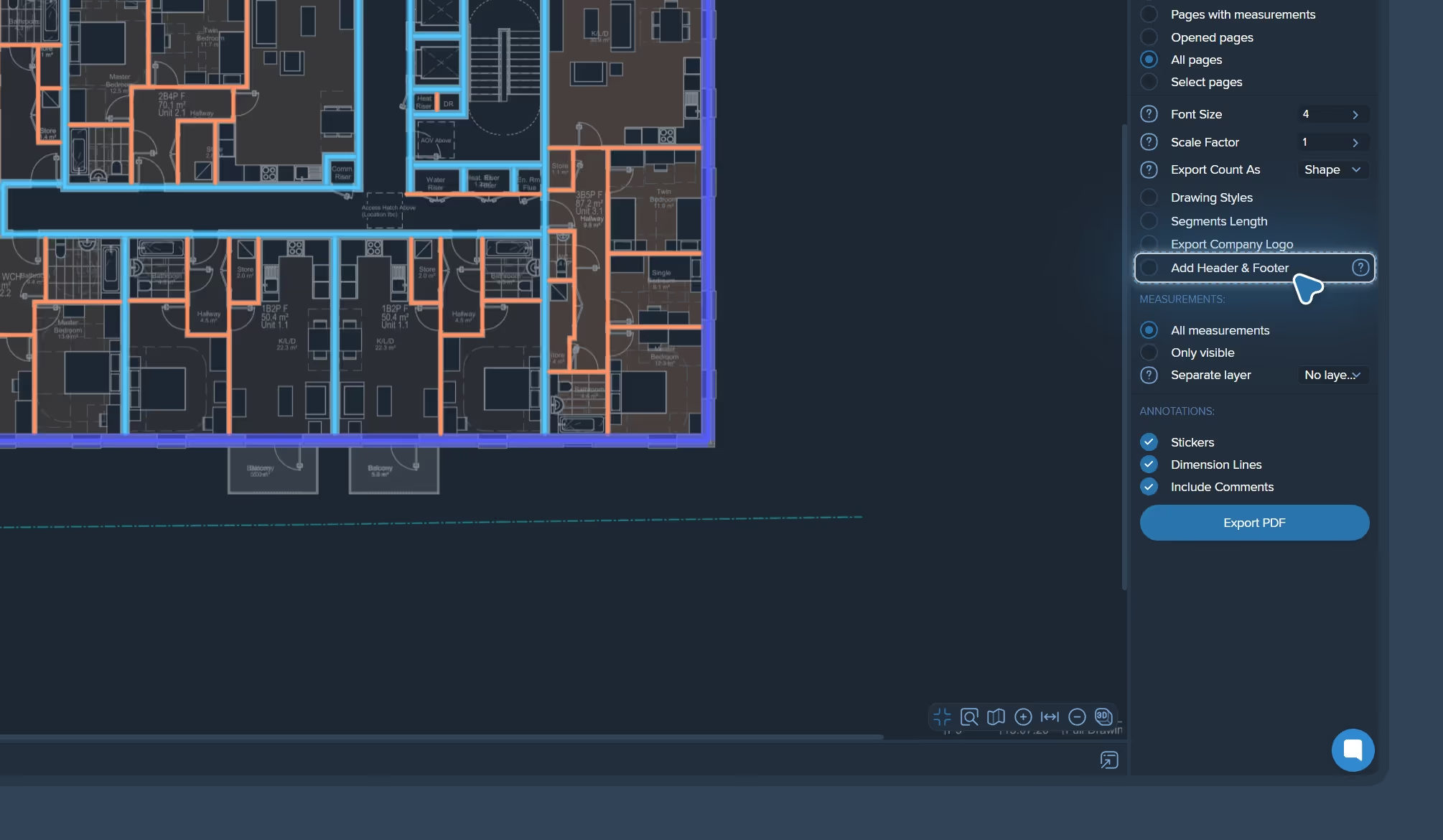
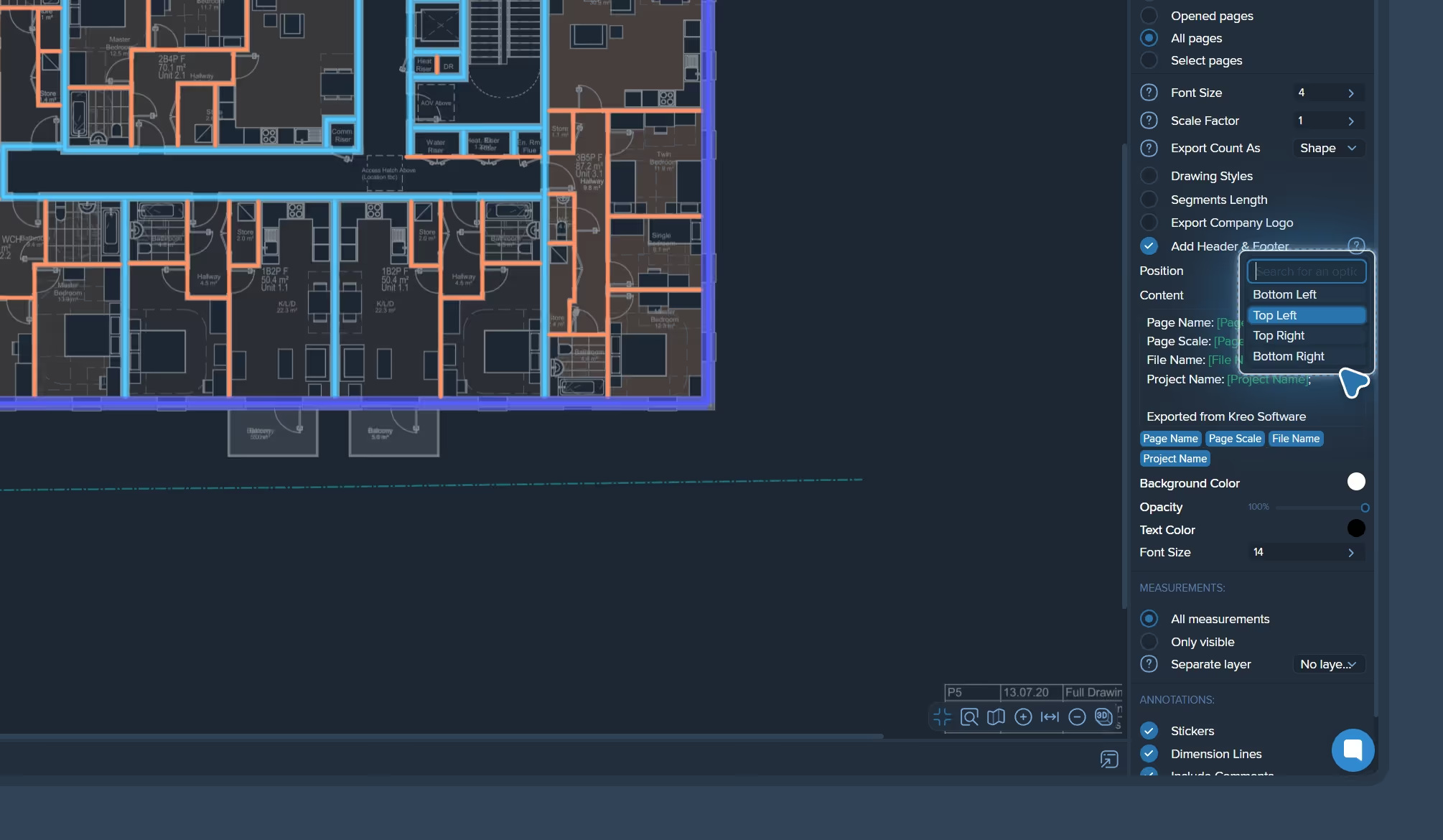
3. In the Position field, choose where to place the block - for example, Top Left or Bottom Right.
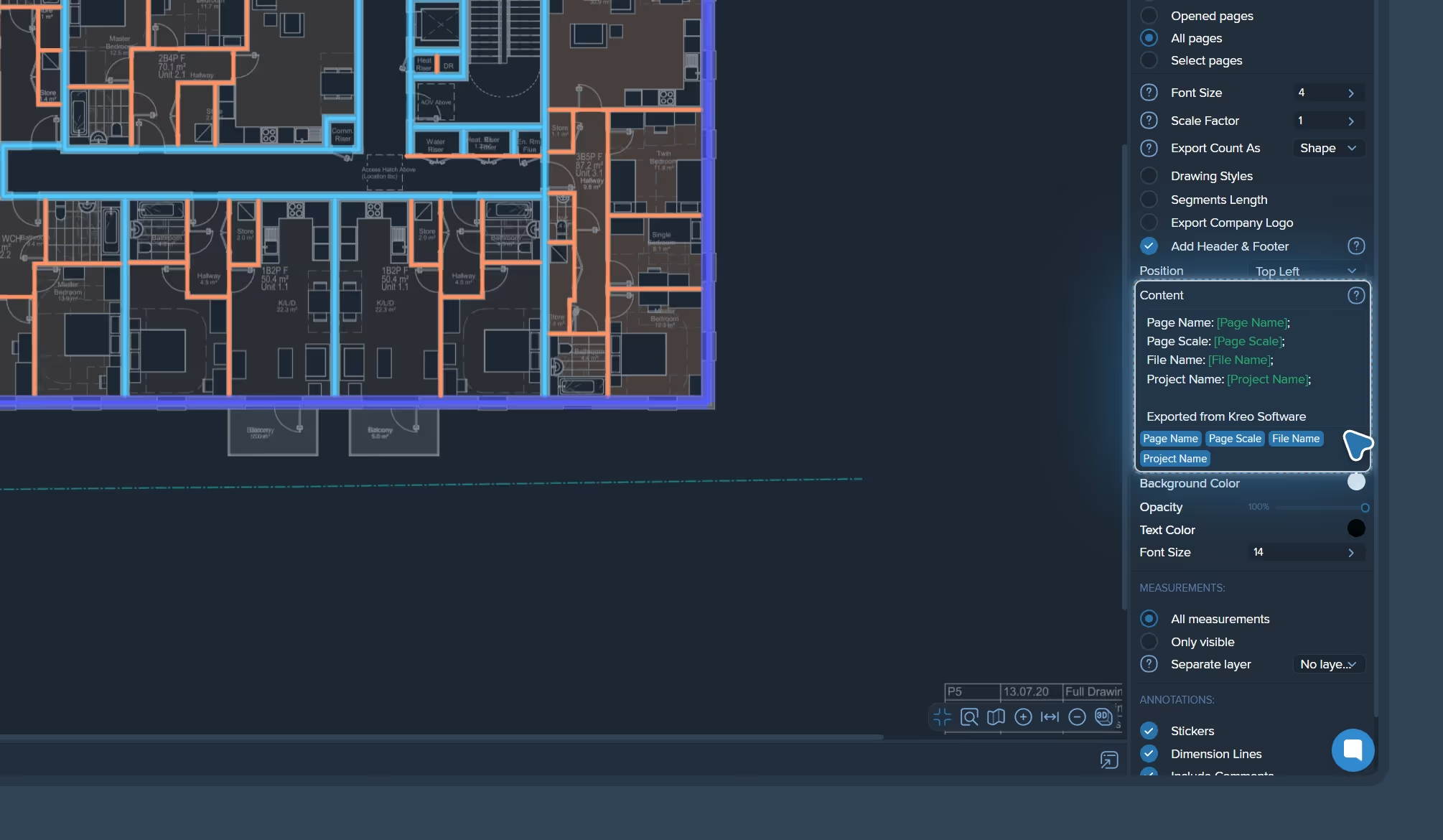
4. In the Content field, enter your own text or use smart tags:
{Page Name}, {Page Scale}, {File Name}, {Project Name}.
Full Style Control
Administrative info shouldn't interfere with reading the drawing, but it shouldn't get lost either. You can independently determine exactly how your stamp will look.
In the Styling section of the export settings, you will find all the necessary tools:
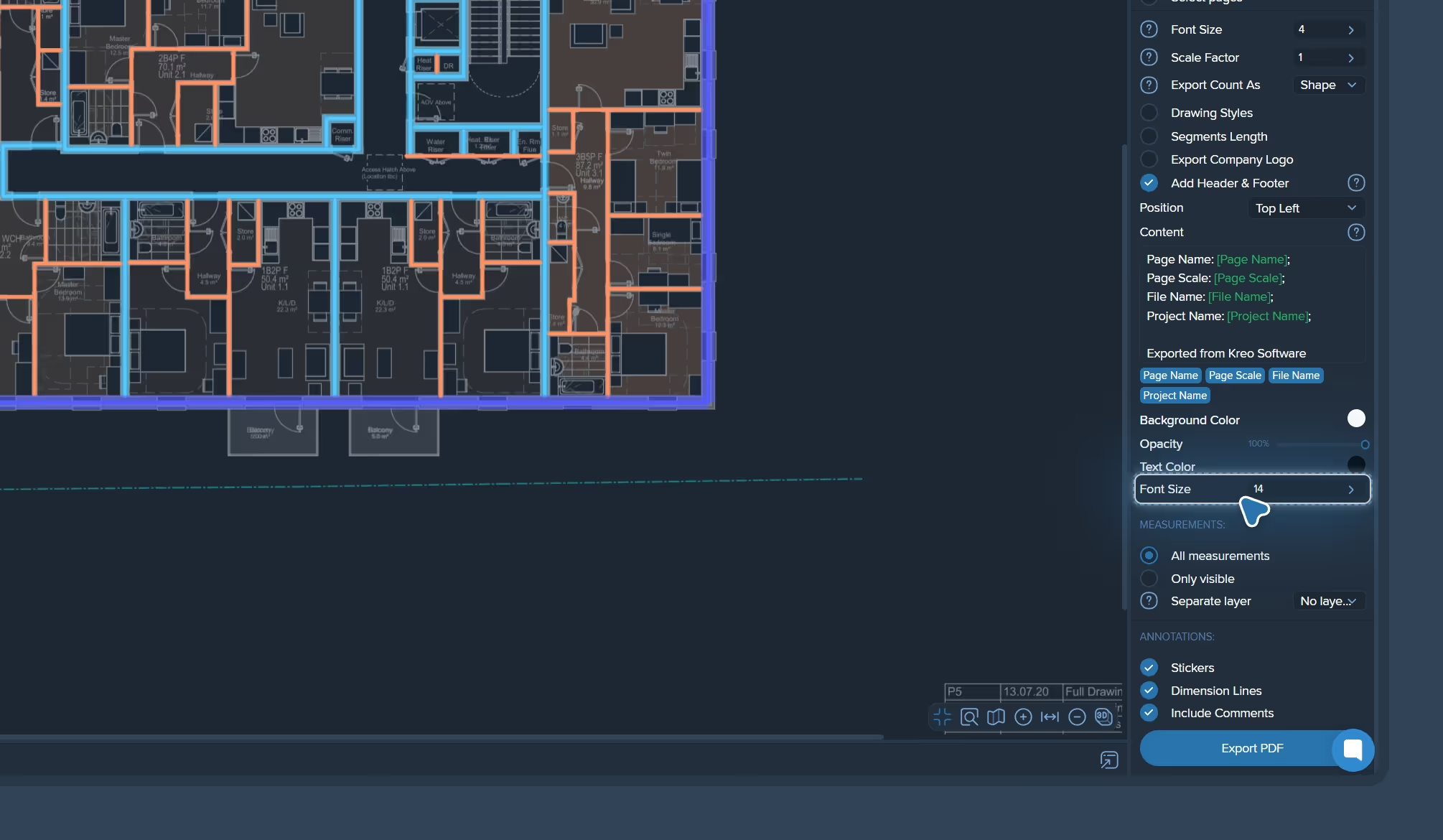
- Background Color - Choose your company’s corporate color for the background overlay.
- Opacity - Adjust the stamp's transparency. A value below 100% allows drawing elements to show through the information block, ensuring nodes and dimensions remain readable.
- Text Color and Font Size - Set the contrast and text size so information is easily legible at any print scale.
Want to make a bold brand statement during a client presentation? Use an opaque stamp with your corporate color. Need to maintain maximum readability for technical details? Use a semi-transparent block with an optimally tuned text size.
Batch Page Export
Styling settings apply to the entire project or selected sheets simultaneously. You don't need to configure each sheet individually - select the necessary pages in the export menu and click Export PDF. Kreo will automatically apply headers and footers to every file.
Construction documentation exists under constant pressure: tight deadlines, multiple versions, and dozens of project participants. In such an environment, professionally formatted, clearly marked PDFs aren't just about aesthetics. They mean fewer questions from colleagues, fewer errors during approval, and more trust from the client.
Kreo automates the formatting process so you can issue documentation faster without wasting time manually marking every sheet.

.png)


.png)


