




Until now, every conversation with Caddie lived exactly as long as your browser tab. Close it, come back tomorrow, and the assistant that spent twenty minutes learning your project was a blank slate again.
That's over. Caddie now saves every chat, and it doesn't wait for you to figure out the next step — it offers one.
The problem
Takeoff isn't one question. It's a sequence: find the door tags on A-101, count them, rename them to match the schedule, check the totals, push it to a report. Each step depends on what happened in the last one.
Do that across three sessions and you were starting over each time — re-explaining which sheets matter, which naming convention you use, what you'd already counted. The work was done, but the context was gone. And if you got interrupted mid-sequence, there was nothing to come back to.
Your chats are saved now
Every conversation with Caddie is stored automatically, per project. Open a project a week later and your chats are exactly where you left them.
They're private to you. Even in a shared company workspace, your chats are yours — nobody else on the team sees them.
At the top of the chat you'll find a chat picker and a New chat button. Switch between conversations, start a fresh one, come back to an old one. That's it.
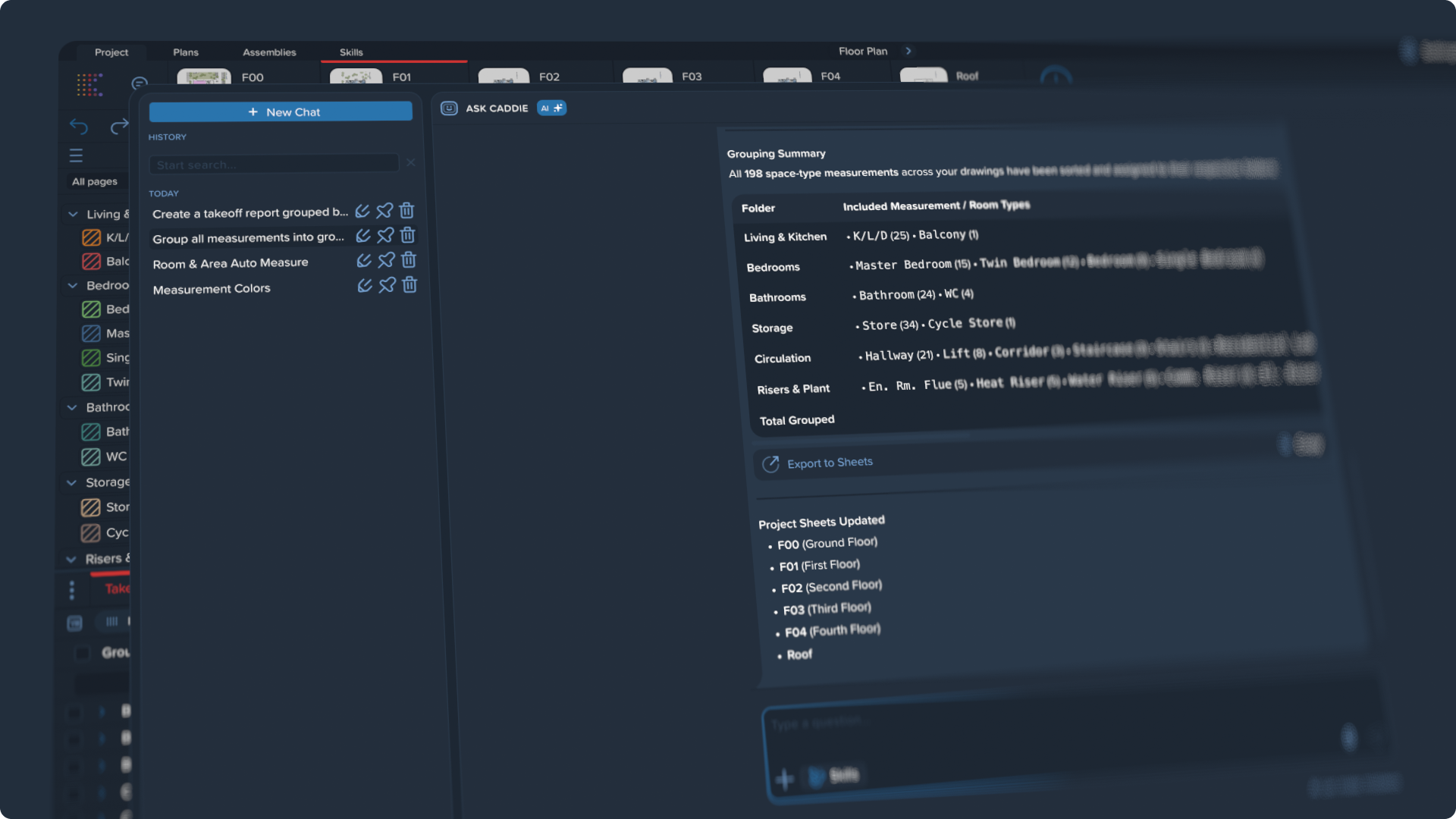
A few details worth knowing:
- Caddie names your chats. After your first message, it reads what you asked and gives the chat a name. Don't like it? Rename it.
- Pin what matters. The chat you keep returning to sits at the top of the list.
- Delete what doesn't. Old, dead-end conversations can be removed. Deletion is permanent, so it's a real cleanup, not a hidden archive.
- No empty chats piling up. "New chat" stays inactive until the current one has a message in it — because a new chat is created for you the moment you send one. Nothing to manage.
Caddie suggests the next step
After every answer, Caddie now offers two or three clickable suggestions for what to do next. Click one and it's sent as your next message. No retyping, no thinking about phrasing.
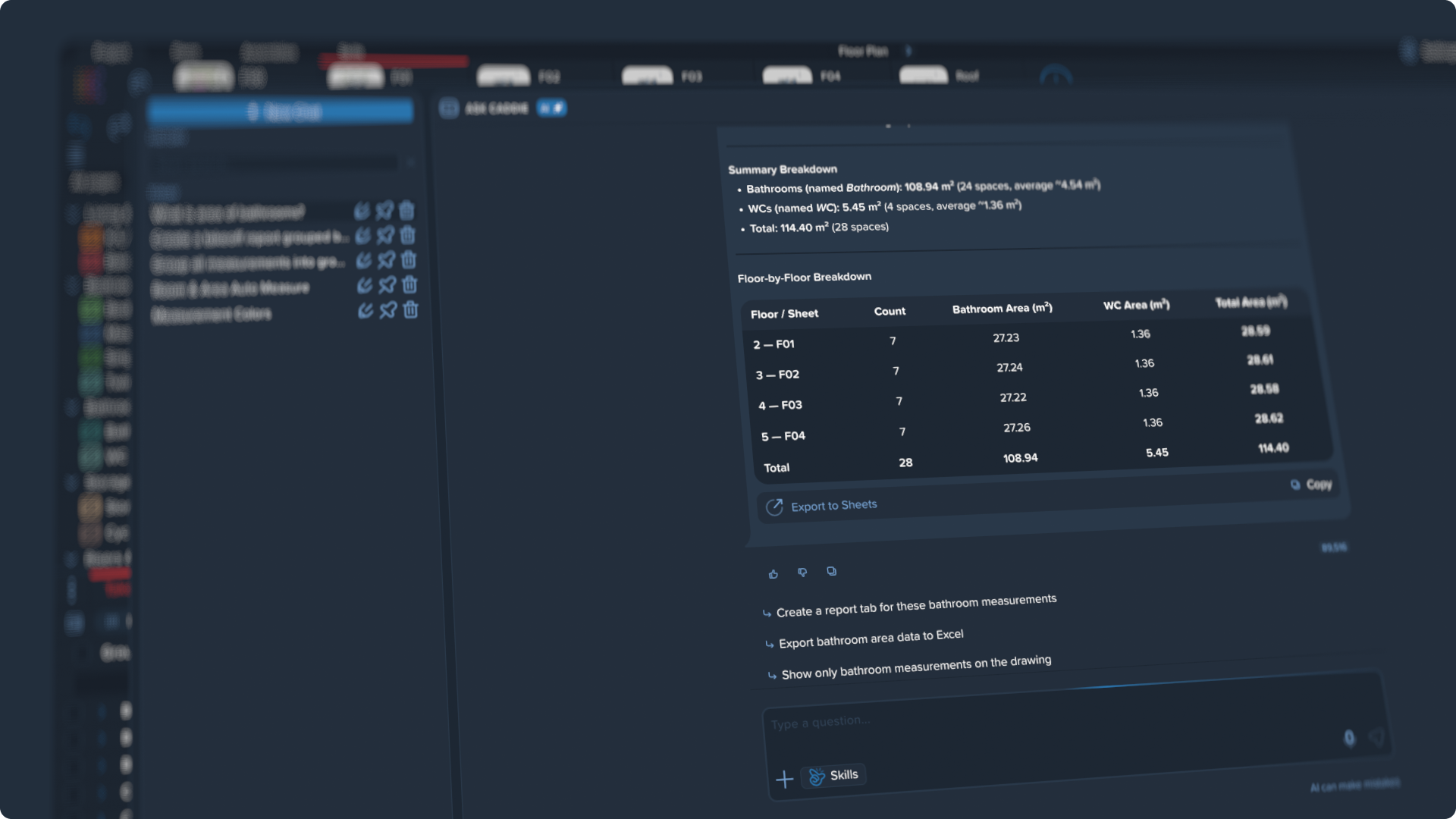
These aren't a menu of features. They're built from what actually just happened in your conversation — the sheet you were working on, the tags Caddie counted, the group it created.
Counted your door tags but haven't renamed them yet? The suggestion names those specific tags on that specific sheet. Finished a full count-and-rename cycle? You'll get something genuinely useful next — export it, drop it into a report, isolate it on the drawing — not a nudge to redo what you just did.
And when there's nothing worth suggesting, Caddie shows nothing. No "What else can I help with?" filling the screen.
A cleaner, calmer chat
Several smaller things that add up:
- Jump to latest. Scroll up through a long conversation and a round arrow appears. One click and you're back at the newest message.
- Edit and resend. Phrased something badly? Click the pencil on your own message, fix it, send it again. Everything below is cleared out so the conversation stays coherent.
- See the change as you edit. Adjusting a measurement now shows how much the quantity actually moved while you're dragging — not after you've committed.
- Save as Skill from a good answer. Like an answer you want to keep, and you can turn that conversation straight into a reusable Skill — a short guided setup handles the rest.
Delete drawing sheets from the chat
Caddie could already duplicate a sheet. Now it can remove them.
Ask it to delete a page and it will — one sheet, several by name, or a whole batch that came out of a search. This is a permanent removal from the project, not closing a tab, so Caddie always confirms first: it shows you exactly which sheets are on the chopping block and waits for a yes. There's no undo, which is precisely why it asks.
For API users: full project lifecycle
Until now the Core Platform API could take a project from files to finished takeoff — upload drawings, create the project, pull measurements and group structures, export a PDF. What it couldn't do is look back. There was no way to ask the API what projects you'd actually created, and no way to remove one. Everything you made through the API stayed there, forever, visible only in the interface.
Both APIs now close that loop.
List your projects. A single call returns every project in your workspace with its name and ID. That's the piece that was missing for anyone building on top of Kreo: you no longer have to store our IDs in your own database and hope they stay in sync. Look them up when you need them, match them against your own job numbers, and use the ID for every downstream call — measurements, groups, exports.
Delete projects. Remove a project programmatically when it's done its job. Test runs from your integration, one-off bid projects, duplicates from a retried upload, anything a client asked you to purge — all of it can now be cleaned up from your own system instead of by hand, project by project.
Both work with the same API key you already manage in Key Management, and both are available on the Core Platform API and the Auto Measure API.
What this actually unlocks is reconciliation. An automated pipeline that creates projects can now verify what exists, spot orphans from failed runs, and clean up after itself — so a nightly job or a CRM integration doesn't slowly fill your workspace with junk nobody remembers creating.
One warning: deleting a project is permanent, and it takes the measurements with it. There's no restore.
FAQ
Are my chats visible to my team?
No. Chats are saved per user and per project. Even in a company workspace, only you see yours.
What happens to my existing conversations?
Chats started before this release weren't saved. Everything from here on is.
Can I recover a deleted chat?
No. Deletion is permanent by design — pin the ones you want to keep.
Can I get a deleted drawing sheet back?
No. That's why Caddie confirms before deleting.
I deleted a project through the API. Can I restore it?
No. Project deletion is permanent and removes the takeoff data along with it. If you're automating cleanup, filter carefully before you fire it.
Open any project and start a conversation — it'll still be there tomorrow.
.png)

.png)


