





Before a quantity surveyor starts measuring, there's a pile of work nobody sees: figuring out the drawing package structure, tracking down the right tables, manually cross-referencing data across pages. On every single project — from scratch. In Kreo 6.0, AI takes that on.
Smart Page Layout
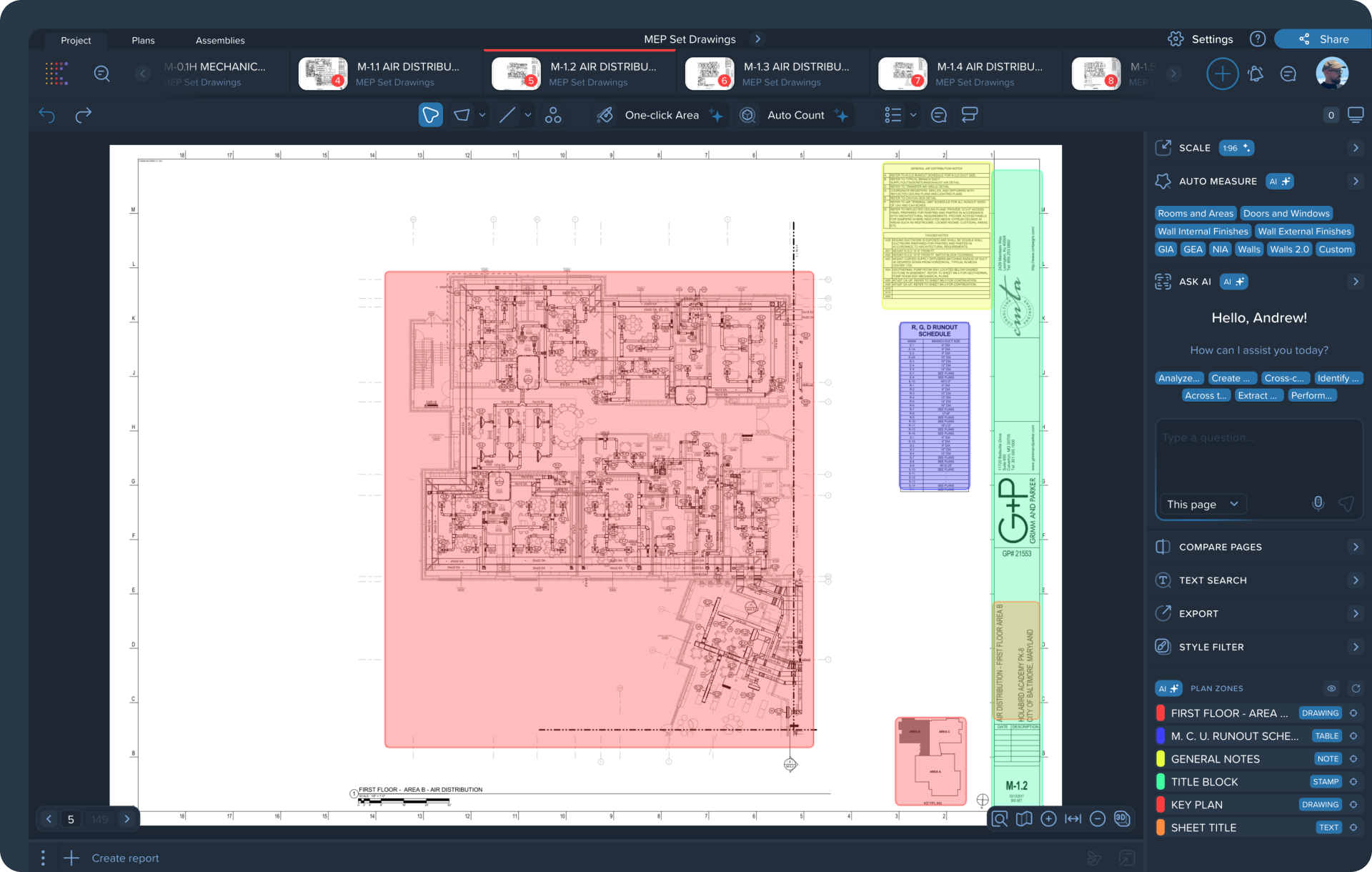
A construction drawing isn't just text and lines. It's different zones with different meaning: the drawing itself, the legend, the title block, specification tables, notes. A person intuitively knows where everything is. AI — until now — didn't.
In Kreo 6.0, that changes. The moment you upload a PDF, computer vision automatically maps every page into zones — no setup, no manual markup. At the same time, pages get meaningful names: AI identifies the drawing type and names it automatically. You open a project — and it's already organized.
This isn't a standalone feature — it's the foundation everything else in this update is built on.
Ask AI — New Interface
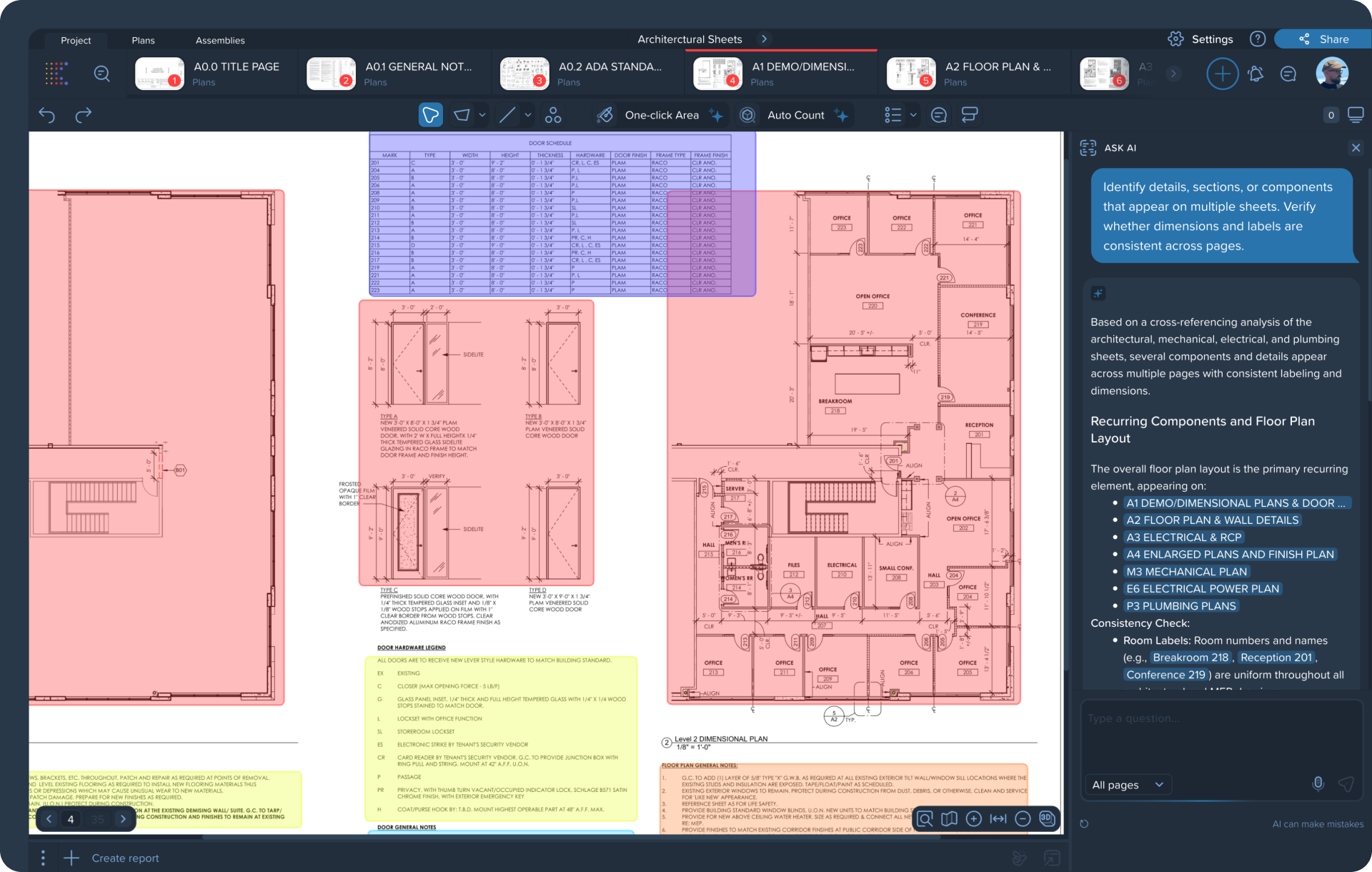
Ask AI has a completely redesigned interface, and now it understands voice. But that's not the point. Thanks to page layout mapping, AI no longer just searches for words — it understands context. It knows that a specific piece of text lives in a table, not a legend. It can find a value mentioned on just one of a hundred pages and tell you exactly where it came from.
Ask it to build a summary table across the entire project — AI will go through every page, structure the data, and create a ready-made table right inside Kreo. Not in Google Sheets, not somewhere else — right here, in the project, ready for further work. Ask what a specific mark or code means — you'll get an answer with a reference to the source.
Works just as well on six pages as on six hundred.
AI Report Assistant
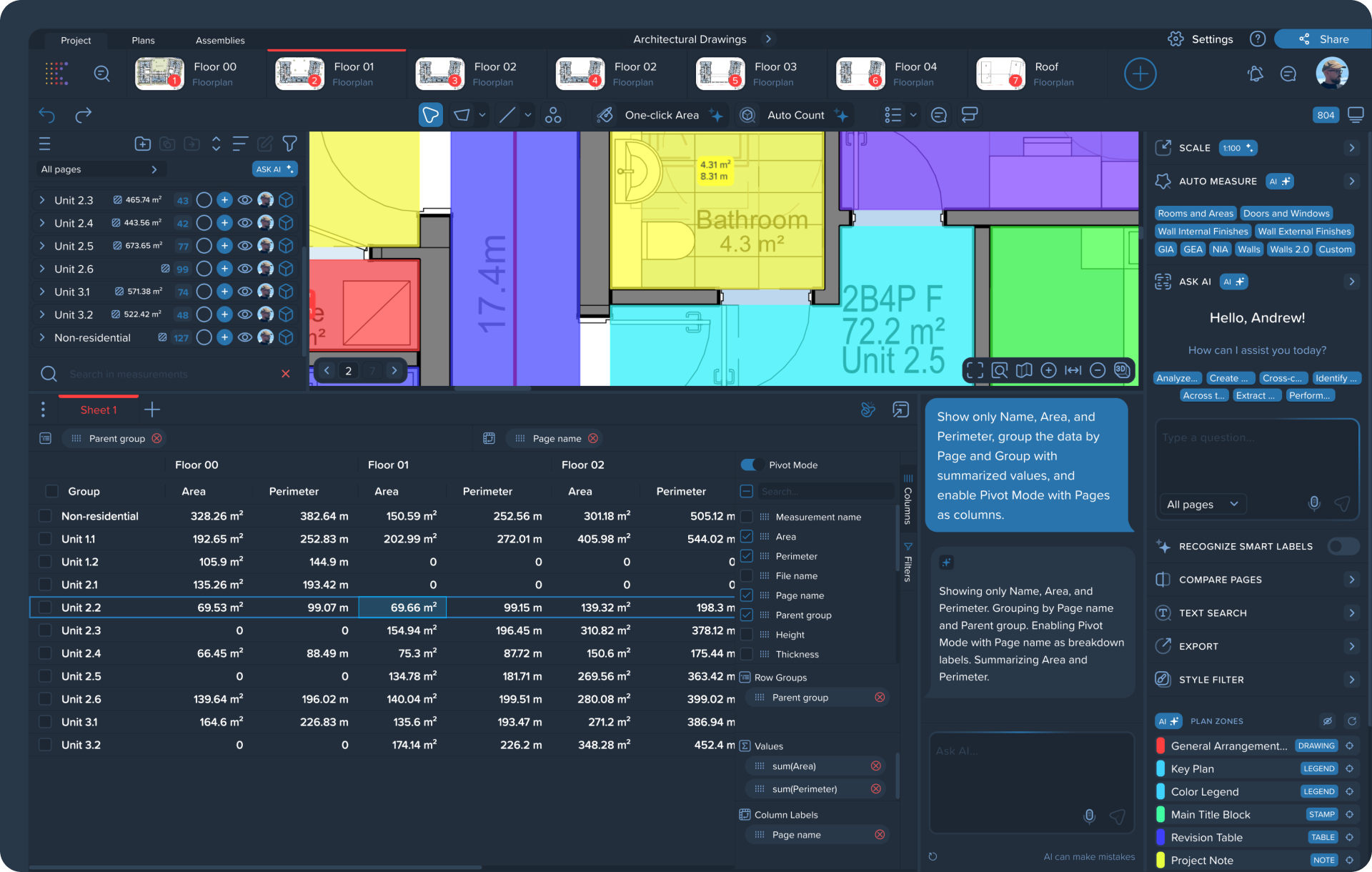
The data is collected, the table is ready. Then the manual work begins: group by type, hide service columns, switch to pivot mode, recalculate aggregates. The same clicks, on every project.
Now just say or type what you need — and AI rebuilds the report. Grouping, aggregation, pivot view, filters — any operation, on demand. Voice or text, any volume of data. If the first result isn't quite right — clarify, and it'll adjust.
AI Takeoff Builder
Opening a new project and immediately knowing what to measure and how — that's experience built over years. A junior estimator gets lost. A senior one spends time on it that could've gone toward actual work.
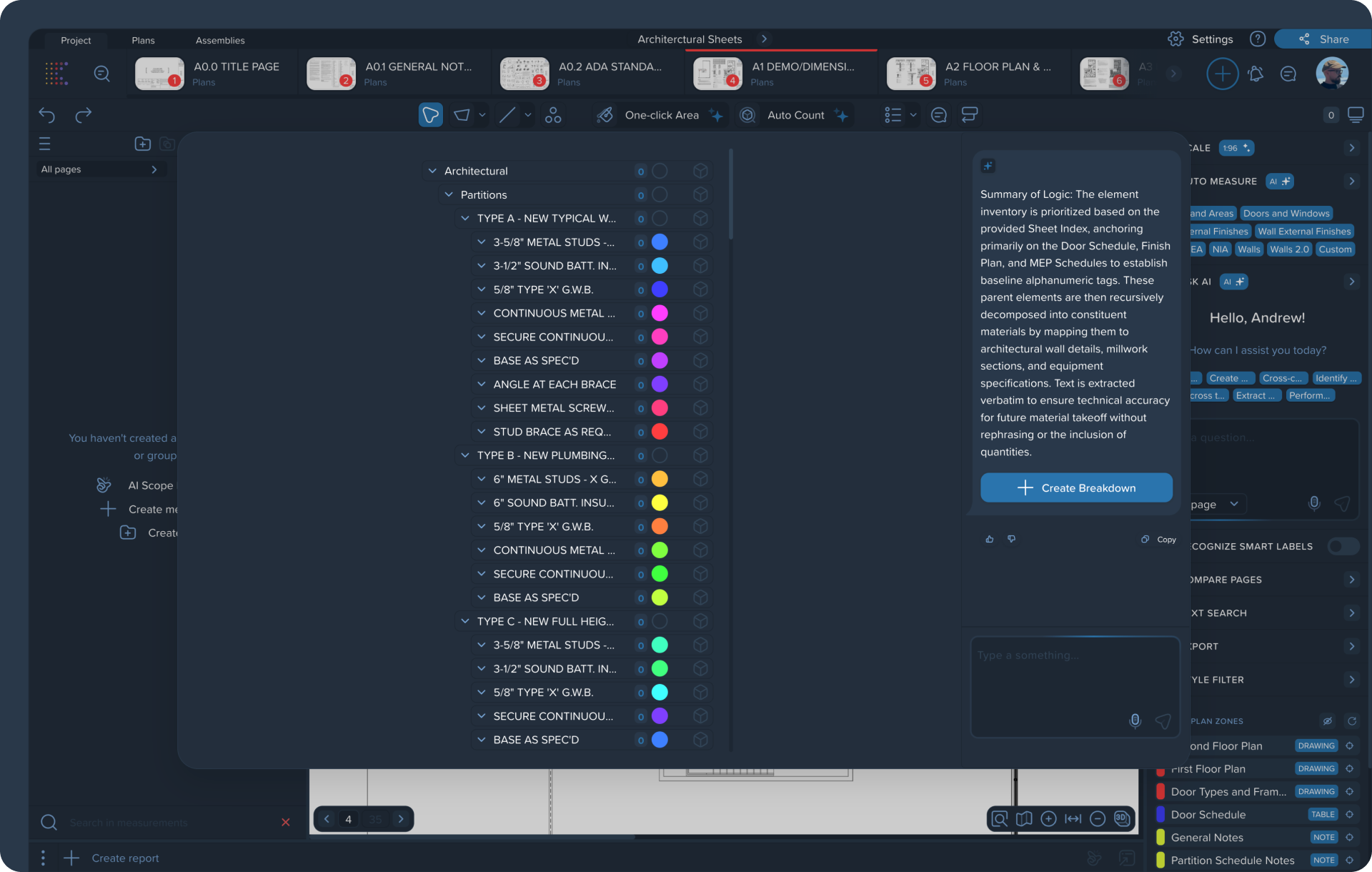
AI Takeoff Builder takes a different approach: one button — and AI builds the element tree for the takeoff on its own, having analyzed the entire drawing package through computer vision. Structural elements, slabs, finishes, staircases — it sees the drawing and understands what's on it.
The result is immediately editable through dialogue: ask it to remove what's unnecessary, regroup, or add more detail — and the tree rebuilds. Not a final bill of quantities, but a solid, meaningful draft — something to work from, not a blank page.
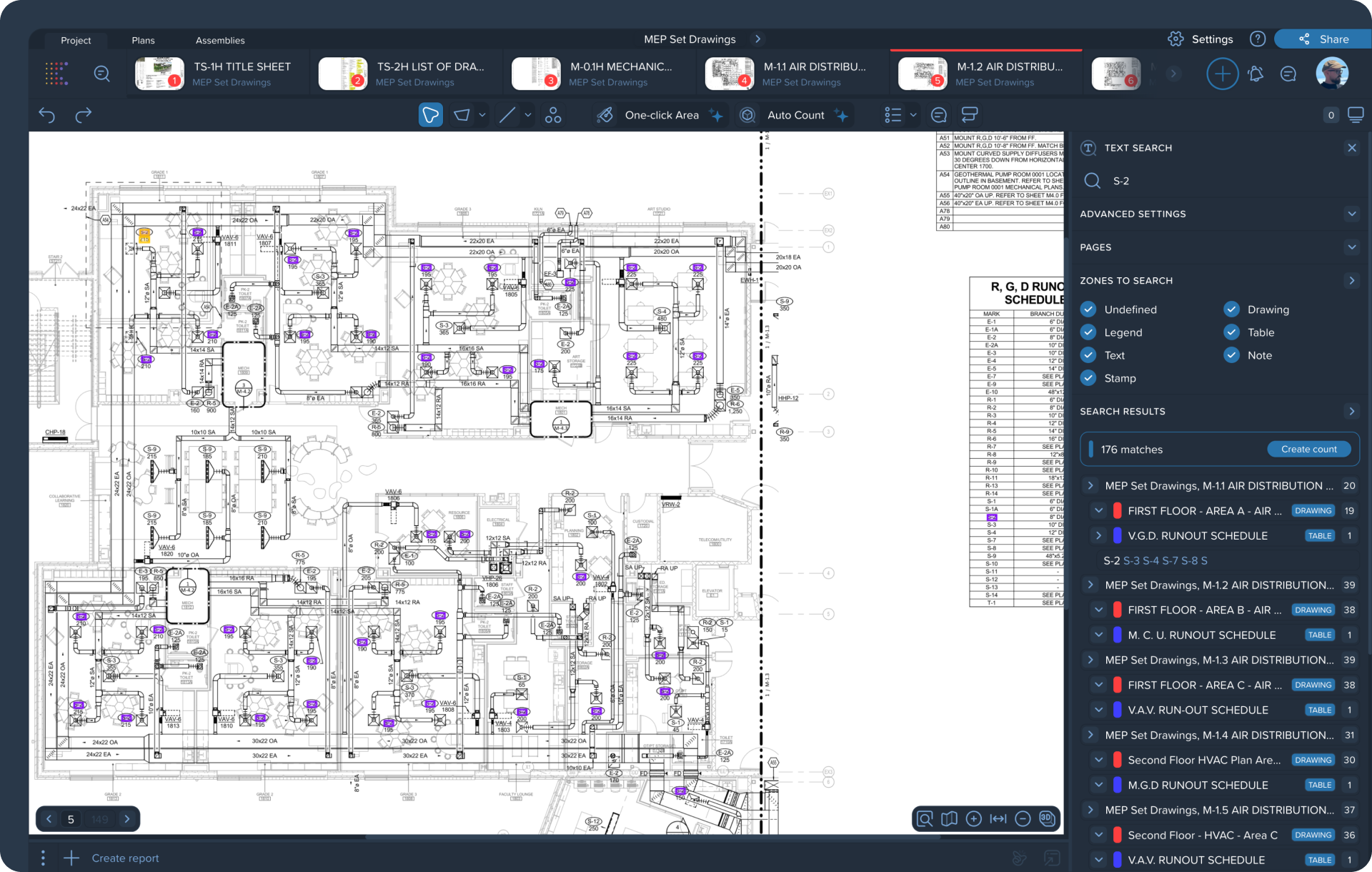
Smart Text Search
Text search in construction drawings isn't new — but it's always had one chronic problem. You search for a window mark and get thirty results: in the title block, in the legend, in the notes, on the drawing itself. What you actually need is buried somewhere in all of that.
Now every search result knows which zone it belongs to. Filter by zone — and you see only text from the drawing, only data from a table, or only names from the legend. Search stops being a way to find a haystack and becomes a way to find the needle.
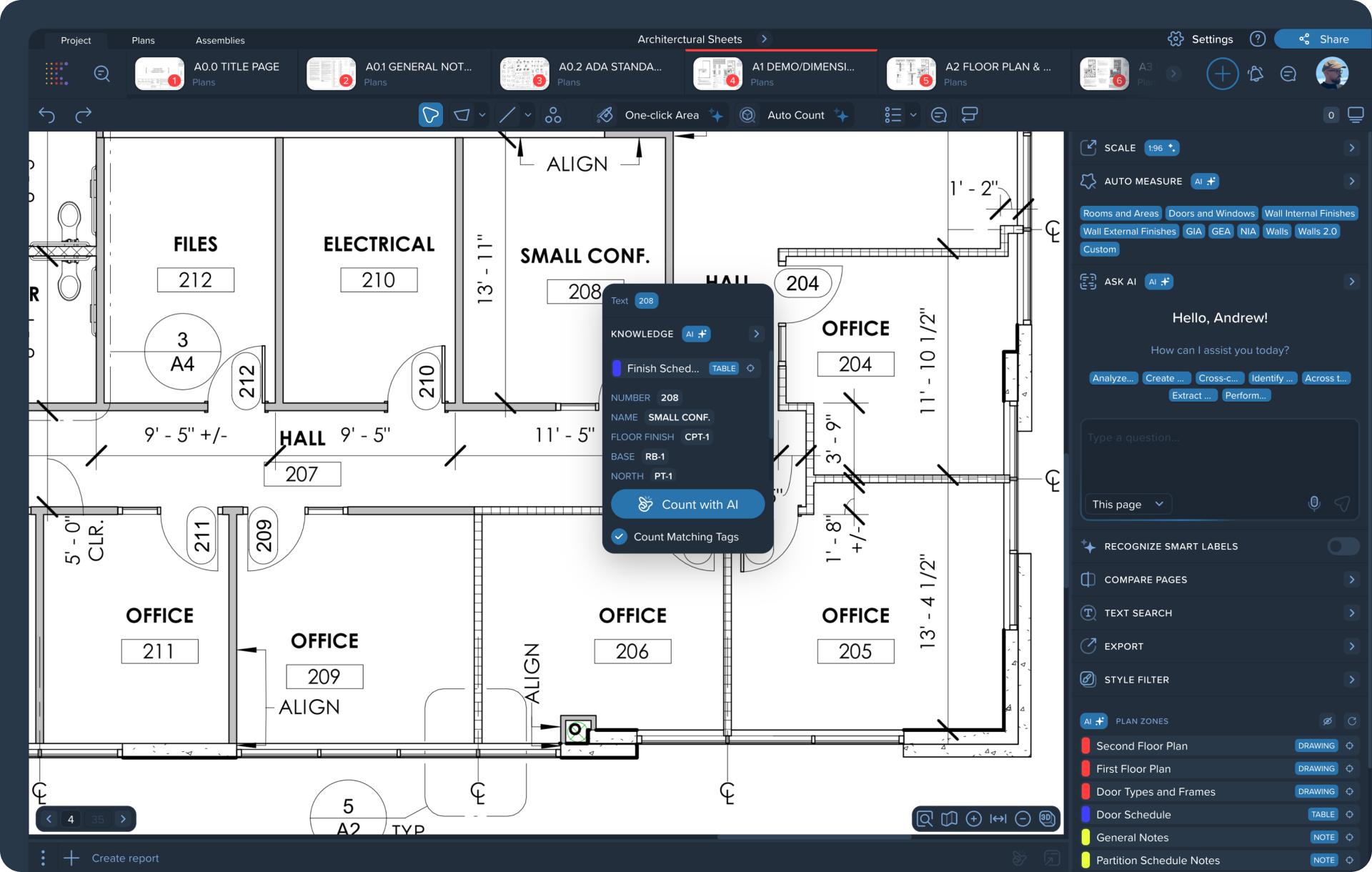
Cross-Reference — AI Search Across the Project
There's a label on the drawing — a number, a code, an abbreviation. What does it mean? Where's the specification? Which table, which page? For an experienced estimator, this is a familiar quest through the project: find the right sheet, find the table, find the row. For a newcomer — a source of mistakes.
Now one click on a label is all it takes. The AI agent goes through the entire project, finds the linked table, and shows the full specification: properties, values, source. Right away — with one button — you can create all related elements: already named, already typed, already populated with data from the spec. What used to take hours now takes seconds.
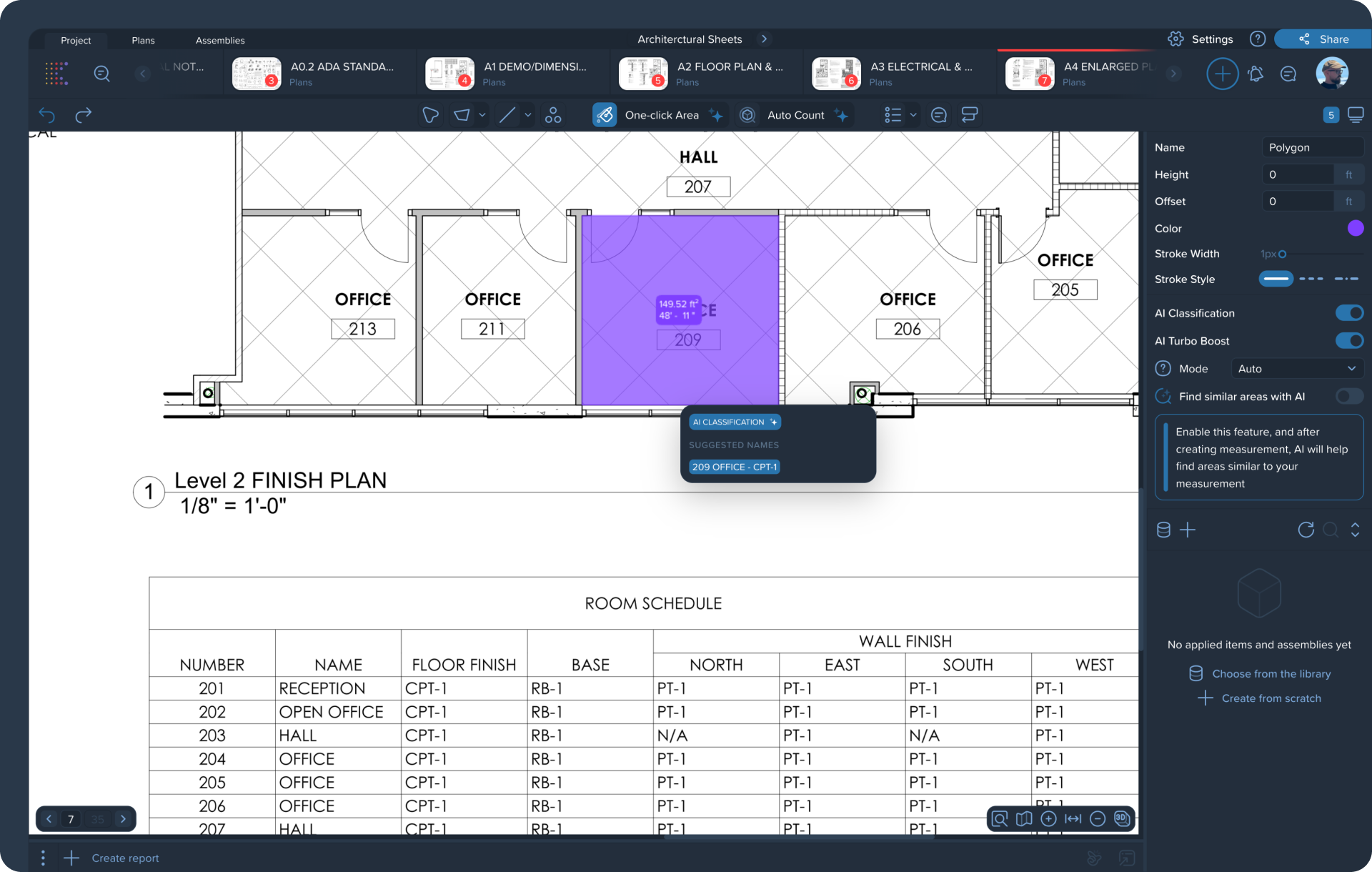
One-Click Area + AI Classification
Outlining a room on a floor plan isn't technically hard. But then comes the routine: figure out what kind of room it is, find it in the legend, name the element correctly, fill in the attributes. Multiply that by the number of rooms in the project.
Now one click on a room — and AI outlines the boundary and classifies the element: with a meaningful name, type, and area. It draws on context — the legend, tables, project data — and understands what it's looking at. Not polygon №47 — a ready-to-use object, already measurable. On any drawing, in any project.
Kreo 6.0 is available now. Want to see how it works on your drawings — book a demo





.png)


